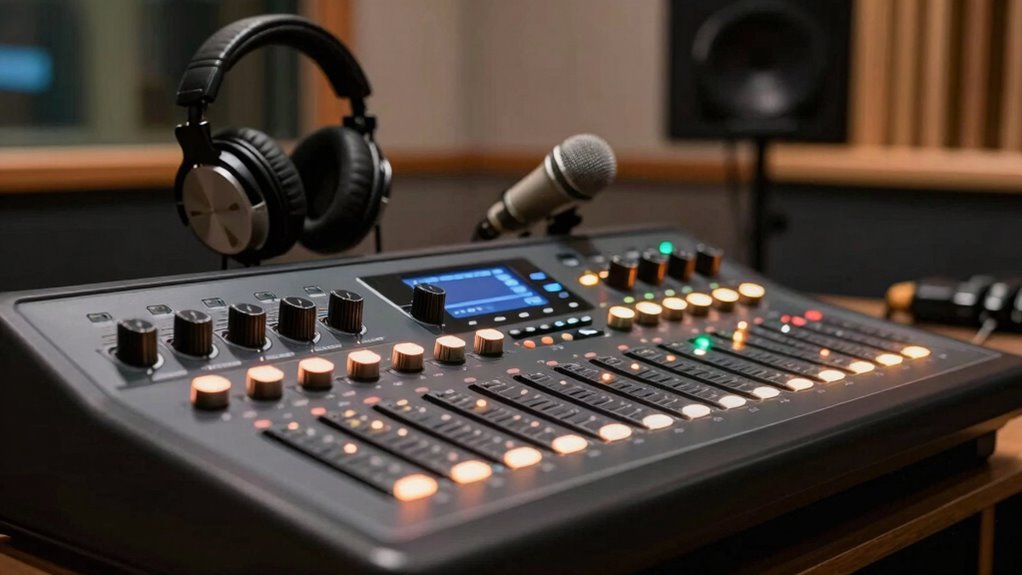

To make your commentary easier to hear, focus on optimizing your microphone placement, keeping it 6 to 12 inches from your mouth and slightly above or below to avoid plosive sounds. Adjust your gain settings so your voice sounds full without distortion, and use headphones to monitor audio quality in real-time. Minimize background noise by choosing a quiet space and adding soundproofing if needed. Fine-tuning these settings will help you achieve clear, professional audio every time—continue for more tips to perfect your setup.
Key Takeaways
- Adjust microphone gain to ensure clear, full sound without clipping or distortion.
- Use noise suppression features to minimize background noise and enhance voice clarity.
- Keep microphone 6-12 inches from your mouth, slightly above or below to reduce plosive sounds.
- Monitor audio levels with headphones to make real-time adjustments for optimal sound quality.
- Choose a quiet recording environment with soundproofing to prevent external noise interference.
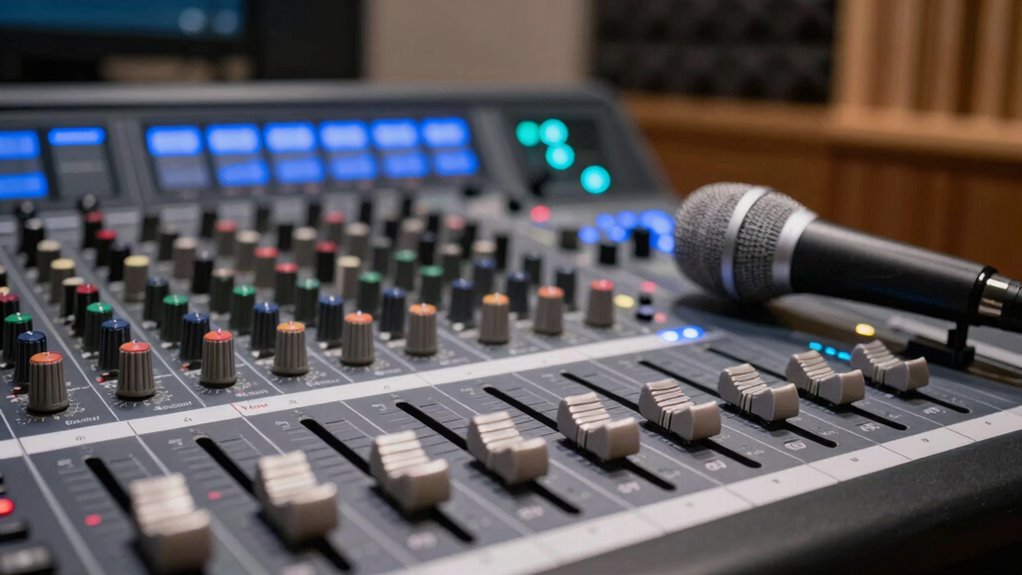
Clear commentary hinges on good audio settings, making it essential to optimize your equipment before recording or streaming. The first step is minimizing background noise, which can distract your audience and reduce overall clarity. To do this, choose a quiet space free from fans, appliances, or external sounds. Use a microphone with noise-canceling features or consider adding soundproofing like foam panels or blankets around your setup. These steps help prevent unwanted ambient sounds from creeping into your recordings, ensuring your voice remains the focus.
Minimize background noise by choosing a quiet space and using noise-canceling equipment or soundproofing techniques for clearer audio.
Next, pay close attention to microphone placement. Proper positioning is imperative for capturing clean, clear audio. Keep the microphone at a consistent distance from your mouth—about 6 to 12 inches—and slightly below or above your mouth to avoid plosive sounds (like “p” and “b” sounds) that can cause distortion. Positioning the mic too far away will make your voice sound distant and thin, while too close can lead to muffled audio or excessive bass. Experiment with placement until you find a spot that captures your voice naturally and minimizes background noise pickup.
Adjust your microphone settings to enhance sound quality further. Use the gain control to set the input level so your voice sounds full and clear without clipping or distortion. Too high, and your audio might peak and distort; too low, and your voice will be faint. Many microphones come with a soft mute button—use this feature during breaks or pauses to prevent accidental noise from entering the recording. Additionally, if your microphone or software has noise suppression or gain filters, enable them to reduce residual background noise. Regularly checking your sound quality during setup can help you identify issues early and make precise adjustments. Being aware of your audio environment can also help prevent issues caused by external factors, ensuring your commentary remains professional. Maintaining consistent audio settings across sessions helps build a stable and familiar sound profile for your audience. Consistent settings also help your audience recognize your voice and style, creating a more engaging experience.
Your audio interface or recording software also plays an indispensable role. Set your audio levels carefully, avoiding peaks that cause distortion. Use headphones while recording to monitor your sound in real-time, catching issues like background noise or uneven volume levels immediately. This allows you to make quick adjustments before finalizing your recording. Additionally, regularly updating your audio equipment can help maintain optimal performance and sound quality.
Finally, remember that consistent settings across your recording sessions help maintain clarity. Make notes of your ideal microphone placement, gain levels, and noise reduction settings, so you can easily replicate them in future sessions. With these careful adjustments—controlling background noise, perfecting microphone placement, and fine-tuning your settings—you’ll produce commentary that’s crisp, clear, and enjoyable for your audience. Additionally, regularly testing your setup can help identify sound quality issues early and keep your recordings consistently professional.

FIFINE AmpliGame AM8 USB/XLR Dynamic Microphone for Gaming Streaming
- Natural Audio Clarity: 50Hz-16KHz frequency response for balanced sound
- Directional Cardioid Microphone: Rejects off-axis noise for clear vocals
- XLR Connection Upgrade: Connects to audio interface for versatile use
As an affiliate, we earn on qualifying purchases.
As an affiliate, we earn on qualifying purchases.
Frequently Asked Questions
How Do I Reduce Background Noise in Audio Commentary?
To reduce background noise in your audio commentary, start by enabling echo cancellation to limit unwanted echoes and improve clarity. Use a noise gate to cut out sounds below a certain volume, effectively silencing background noise when you’re not speaking. Adjust these settings in your audio software, ensuring your microphone gain isn’t too high. These tweaks keep your commentary clear, making it easier for listeners to focus on what you’re saying.
What Microphone Settings Improve Voice Clarity?
Think of your microphone as a loyal friend; proper settings make it truly shine. To improve voice clarity, focus on microphone placement—keep it close but not touching your mouth—and adjust the gain so your voice sounds natural without distortion. These tweaks help your voice cut through the noise, making your commentary clearer and more engaging. Experiment with these settings until your voice feels like it’s right in front of your audience.
How Can I Prevent Audio Lag During Live Commentary?
To prevent audio lag during live commentary, focus on optimizing audio synchronization and reducing latency. Use a wired connection instead of Wi-Fi to minimize delays, and adjust your audio buffer size in your streaming software—lower buffer sizes decrease latency but may cause instability. Enable hardware acceleration if available, and keep your drivers updated. Regularly test your setup before going live, ensuring your audio stays synchronized with your video feed.
Which Audio Formats Are Best for Streaming Commentary?
Choose AAC or MP3 for streaming commentary, as they provide excellent audio format compatibility and efficient compression, ensuring clear sound without sacrificing streaming quality. These formats are widely supported across platforms, making your commentary accessible and crisp. Prioritize high bitrates—around 192 kbps or higher—to enhance streaming quality. By selecting these audio formats and settings, you’ll deliver smooth, high-quality commentary that keeps your audience engaged and listening.
How Do I Adjust Volume Levels for Balanced Sound?
To adjust volume levels for balanced sound, start with audio calibration by setting your input levels evenly across devices. Use sound equalization to tweak frequencies, ensuring voices and commentary are clear without distortion. Adjust individual volume controls for your microphone and speakers or headphones, testing frequently. This way, you maintain a well-balanced audio environment, making commentary easier to hear and improving overall sound quality for your audience.
Conclusion
By adjusting your audio settings, you create a clear path for every word to reach your ears like a gentle stream flowing unobstructed through a quiet forest. With crisp highs and balanced lows, commentary becomes a seamless part of your experience, weaving through the ambient sounds like a whisper carried on the breeze. These tweaks transform your listening space into a sanctuary where every phrase is vivid and effortless to follow, making your listening journey truly immersive.